


If your Google Business Profile has been hacked, secure the Google Account that owns it first, then remove anyone you don’t recognise and fix what they changed. If you’ve been locked out completely, request ownership of the profile from a Google Account you control. The current owner gets 3 days to respond, and after that you may be able to claim it back.
Last checked against Google Business Profile Help and Google Account Help: 22 Oct 2026.
First, check it’s really a hack
Three different things can make a profile suddenly look “wrong”. They need different fixes, so spend two minutes on this first.
| What you see | Likely cause | First move |
|---|---|---|
| Owners or managers you don’t know, an email saying you were removed, a new phone number or website you didn’t add | Hack or hijack | Steps 1–4 below |
| Details shown in blue in the profile editor, or a notice about suggested edits | Google update | Accept or reject it |
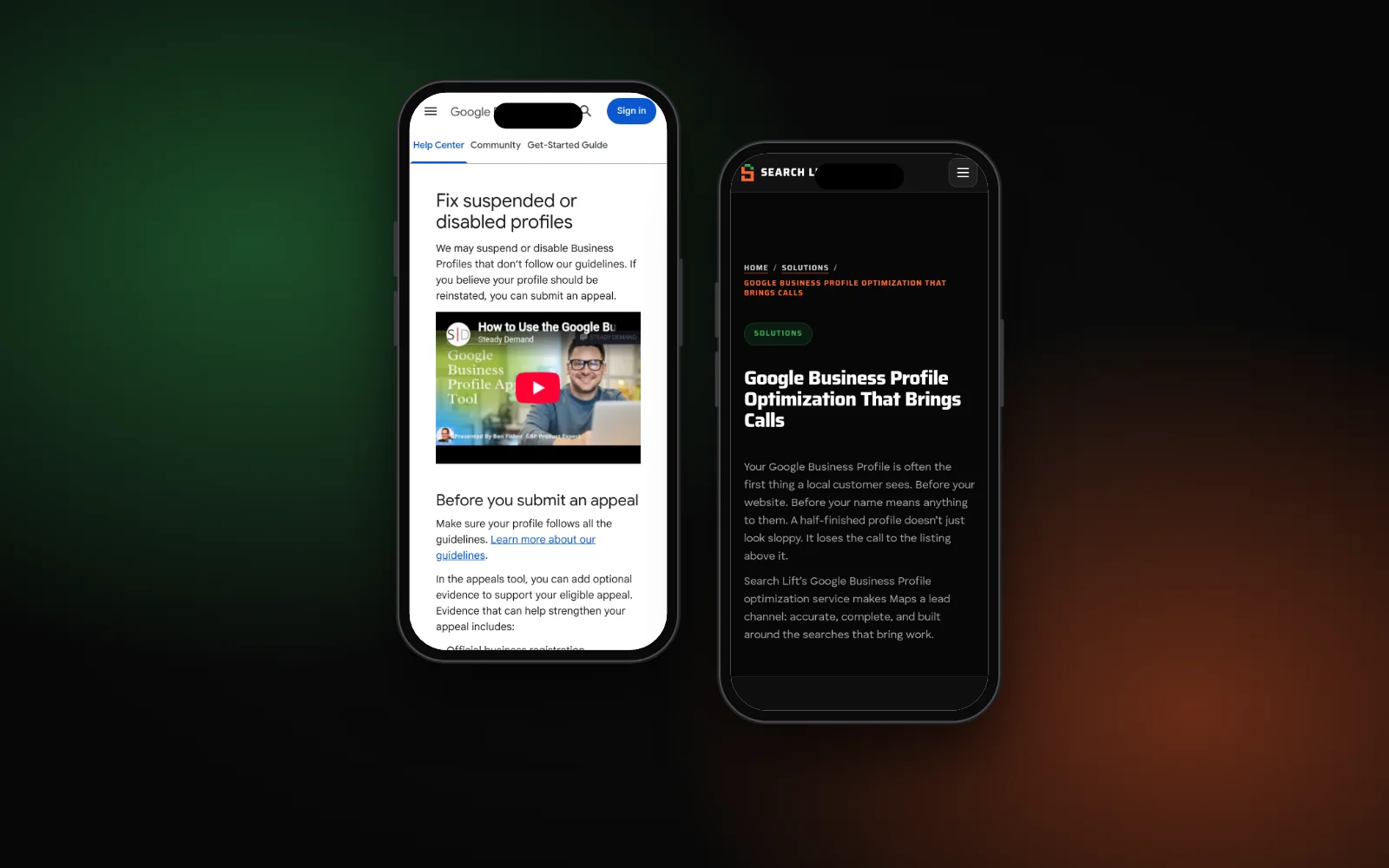
| A “suspended” or “disabled” notice | Policy action by Google | Appeal, don’t make a new profile |
Google says blue text in the profile editor shows info changed by Google, and you get 4 days to accept or reject a suggested edit before it may be published. That isn’t a hack. A suspension isn’t either: use Google’s appeals tool, and see our guide to a profile suspended after an address change.
Google can also revoke ownership if you haven’t signed in recently or it can’t reach you by email. Recovery then works like Step 3.
Step 1: Secure or recover the Google Account
Whoever controls the Google Account controls the profile. Fix the account before you touch the listing, or the intruder can undo your changes.
- If you can still sign in: follow Google’s hacked account checklist. Review recent security events, remove devices you don’t recognise, change the password, and check the recovery phone and email. Also remove any Gmail forwarding rules or filters you didn’t set up, so Google’s profile emails reach you.
- If you can’t sign in: use the account recovery page. Google’s recovery tips say to use a device and location you normally sign in from, and that wrong guesses won’t lock you out.
- Turn on 2-Step Verification as soon as you’re back in, so a stolen password alone isn’t enough.
Google adds that you can’t call Google to get back into an account, and that it doesn’t work with any account recovery service.
Step 2: Remove strangers and fix the profile
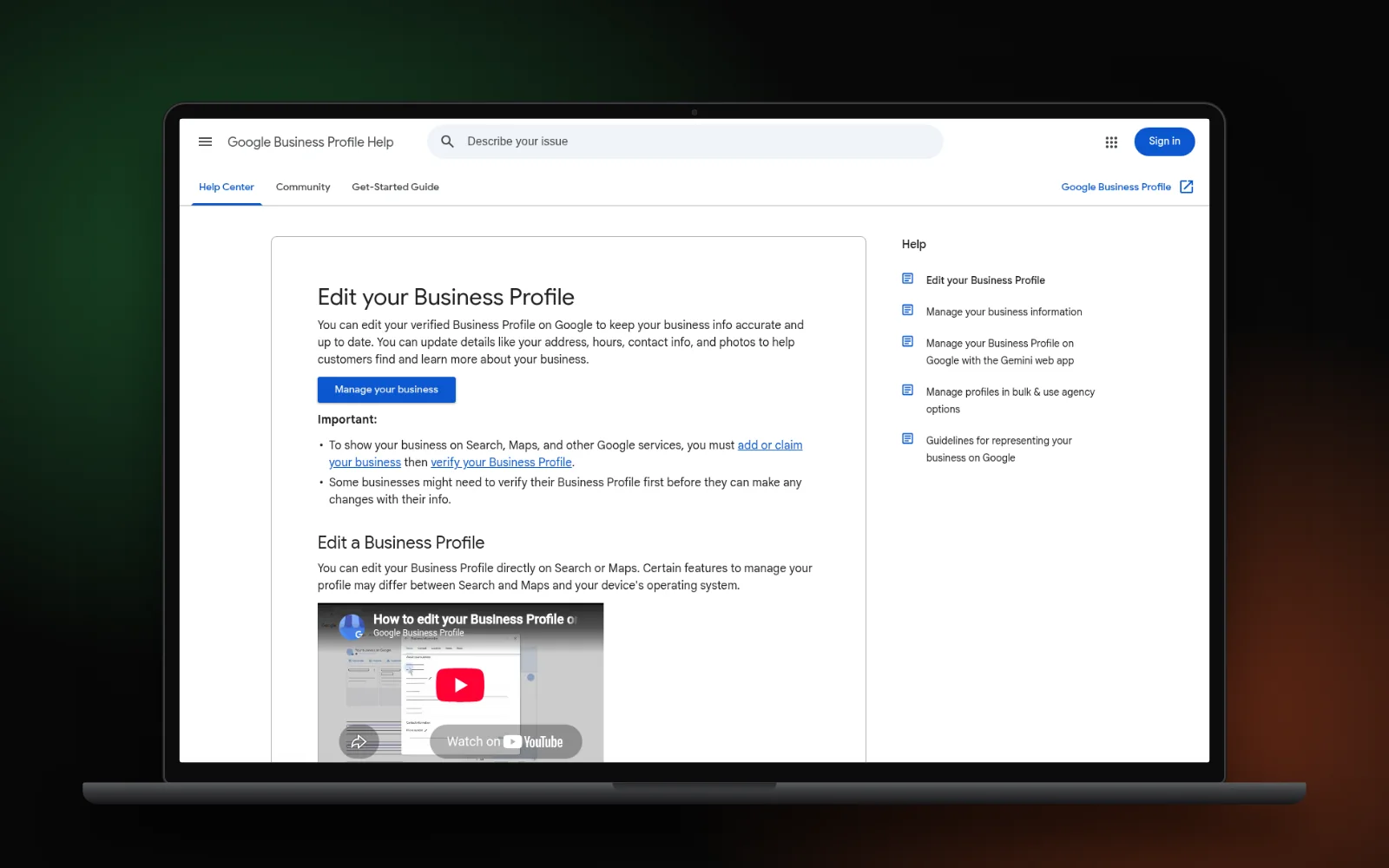
Once you’re in, go to your profile, then More → Business Profile settings → People and access. Our guide to Google Business Profile owner vs manager roles explains what each person on that list can do.
- Screenshot the list and anything that was changed, before you edit it. You may need this evidence later.
- Remove anyone you don’t recognise. Only owners can remove other owners and managers.
- Make sure you’re the primary owner. If not, the primary owner can transfer primary ownership to you.
- Correct the details: name, phone, website, hours, categories, photos and posts.
Timing matters. Google says new owners and managers must wait 7 days before they can remove other owners or transfer primary ownership. If someone was added recently, act within that week.
Step 3: Locked out? Request ownership
If the attacker removed you and you can’t recover the account, Google’s ownership request process is the route back:
- Sign in with a Google Account you control (a new one is fine).
- Go to business.google.com/add and enter your business name and address.
- Pick your business. You’ll see “Someone else may manage this Business Profile.”
- Select Request Access, fill in the form and submit.
The current owner is emailed and has 3 days to respond. If they don’t, open your confirmation email and select View request → Verify. Google notes this claim option “isn’t always available”. If the request is denied, you can appeal.
Service-area businesses (no shop customers visit) follow a different route. Google says to contact Business Profile support and choose Transfer ownership of listing.
Don’t create a second profile while you wait. That gives you a duplicate Google Business Profile to sort out, and the reviews stay on the original.
Step 4: Contact support and watch for scams
If the request stalls or the claim option never appears, use Contact us on any Business Profile Help page. Include your screenshots, the date you noticed, the emails Google sent you, and proof you run the business.
Be careful who you trust. Google says it doesn’t charge to verify or reinstate a profile, and never asks for a one-time password or PIN. Anyone calling “from Google” and asking for money or a code is not Google.
Lock it down so it doesn’t happen again
- 2-Step Verification on every account that owns or manages the profile.
- A backup owner you trust. A profile must have another owner or manager before you can transfer primary ownership.
- Agencies as managers, not owners. Google warns that owners can edit and transfer ownership, so keep owner access to people in the business.
- Remove ex-staff as soon as they leave.
- Ignore access requests from people you don’t know.
- Read Google’s emails about edits and requests. If an ownership request goes unanswered for 3 days, the requester may be able to claim the profile.
Not sure how your profile looks to customers right now? Run the free Search Gap check. Or let our Google Business Profile service audit who has access and set it up safely.