


A Google Business Profile owner has full control: they can add and remove people and delete the profile. A manager can do almost everything else, from editing hours and photos to replying to reviews, but can’t add or remove users or remove the profile. A profile can have several owners but only one primary owner, and that should be you, on a Google Account your business controls.
Last checked against Google Business Profile Help: 27 Oct 2026.
Owner vs manager at a glance
This summary follows Google’s owners and managers help page, which lists every capability in a table.
| Task | Owner | Manager |
|---|---|---|
| Edit hours, address, phone, services and attributes | Yes | Yes |
| Edit the name, category or website | Yes | Yes |
| Photos, logo, posts and products | Yes | Yes |
| Reply to reviews, use messaging, download insights | Yes | Yes |
| Link Google Ads, opt in or out of Bookings | Yes | Yes |
| Add or remove users, change roles | Yes | No |
| Remove the profile | Yes | No |
| Make someone primary owner | Primary owner only | No |
Notice that a manager can still change your business name, category and website. “Manager” is not a read-only role, so only give it to people you trust with your listing.
Primary owner vs owner
Every profile has exactly one primary owner. Google’s transfer help page says only the primary owner can transfer primary ownership, and the primary owner can’t remove themselves until they’ve handed that role to someone else. Other owners have the same powers over people and the profile itself, which is why Google’s security advice says to add owners “with extra care”.
Which role to give whom
- You, the business owner: primary owner, on a Google Account the business keeps, not a staff member’s personal account.
- A business partner or co-founder: owner, so someone else can step in if you lose access.
- Staff who post updates or reply to reviews: manager.
- Your SEO agency or web designer: manager. Google’s ownership guidelines say agencies should, whenever possible, encourage the business owner to own the profile and add them as managers, and must hand ownership back immediately when asked.
Give everyone their own Google Account. Google says users don’t need to share a password, and Google Groups can’t be added as owners or managers. When someone leaves your business, remove their access, as Google’s security page recommends.
How to add an owner or manager
- Go to your Business Profile.
- Select More > Business Profile settings > People and access.
- Select Add and enter the person’s email address.
- Under “Access”, choose Owner or Manager, then select Invite.
The person becomes a user as soon as they accept, and you get an email. Pending invites appear on the same page, where you can cancel them.
How to change a role or remove someone
Only owners can do this. In People and access, select the person, then either select Edit next to “Access” and pick a new role, or select Remove person. If you can’t select anyone, you probably have manager access.
Removing someone doesn’t erase their work. Google says their review replies, posts and other actions stay on the profile. Managers can also remove themselves with Stop managing.
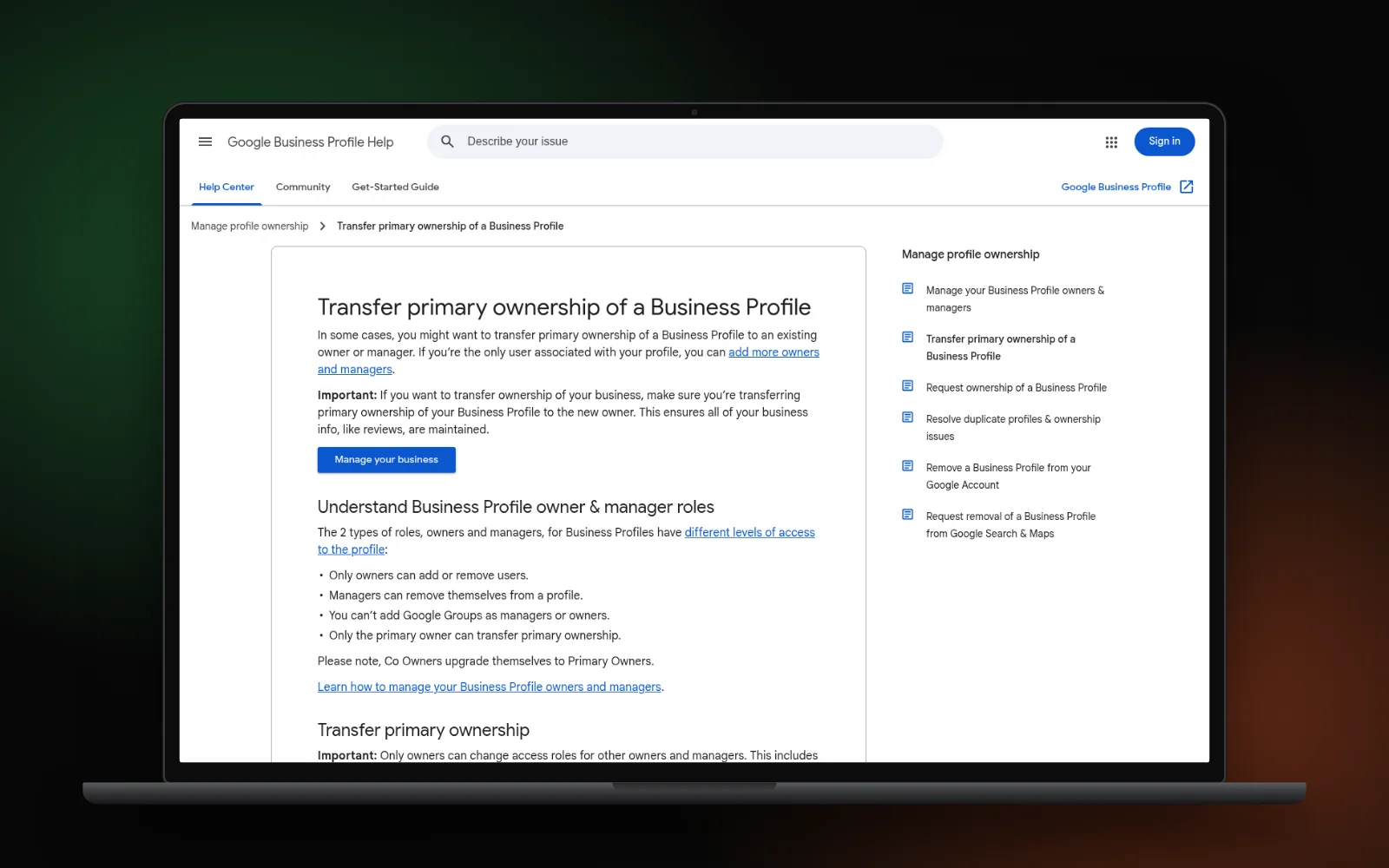
How to transfer primary ownership
The new primary owner must already be an owner or manager, so add them first. Then:
- In People and access, select the person.
- Next to “Access”, select Edit.
- Choose Primary owner and select Save.
If you’re selling the business, Google says to transfer primary ownership of the profile to the new owner, which keeps your business information, such as reviews. Its guidelines for representing your business say the same from the buyer’s side: the previous owner adds you and transfers ownership.
The 7-day wait for new users
New owners and managers must wait 7 days before they can do some things. Until then, Google says they’ll get an error if they try to delete or undelete the profile, remove other owners or managers, or transfer primary ownership. Plan handovers with that week in mind.
If someone else owns your profile
If a former employee, old agency or stranger controls your listing, use Google’s request ownership process:
- Go to business.google.com/add, find your business and select Request access when Google says someone else may manage it.
- The current owner has 3 days to respond. If they don’t, you may get the option to claim the profile from your confirmation email, though Google says it isn’t always available.
- If the request is denied, you can appeal the decision.
- Service-area businesses without a shop or office contact Google support and choose “Transfer ownership of listing”.
Be wary of unexpected emails asking you to approve a new owner or manager. Google advises not to approve them unless you know the person. If strangers have already taken over, follow our guide to recovering a hacked Google Business Profile. If you find two listings for your business, see how to fix a duplicate profile.
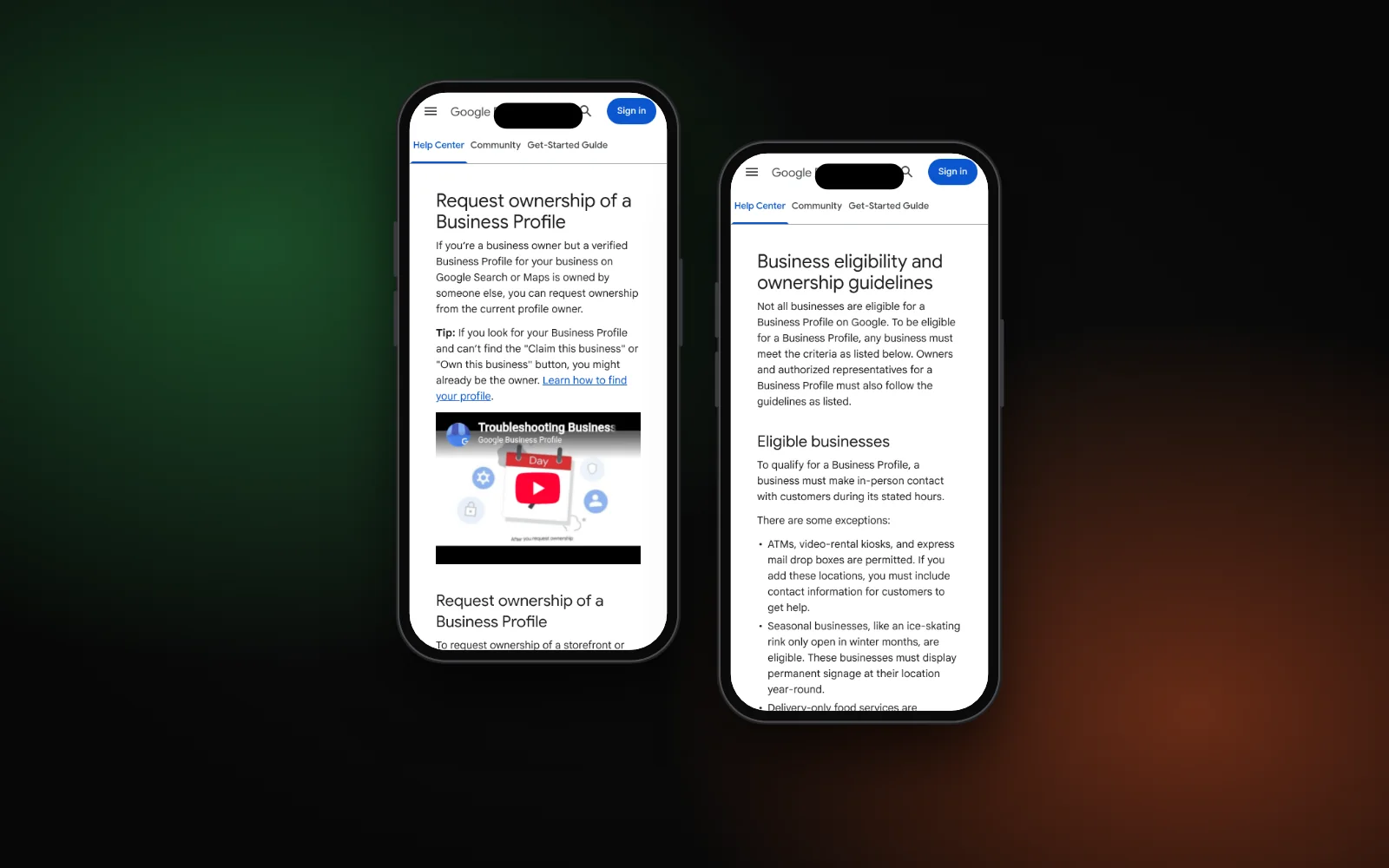
One more message people mix up with roles: if your profile says it’s only visible to you or its managers, the profile isn’t public yet. Our post on why a profile isn’t public yet explains the usual causes, starting with unfinished verification.
When to get help
If you’re locked out, or an old agency won’t hand your profile back, our Google Business Profile service can help you work through Google’s ownership process. Or start with the free Search Gap check to see how your profile shows up on Google and Maps. We typically reply within 1–2 business days.