

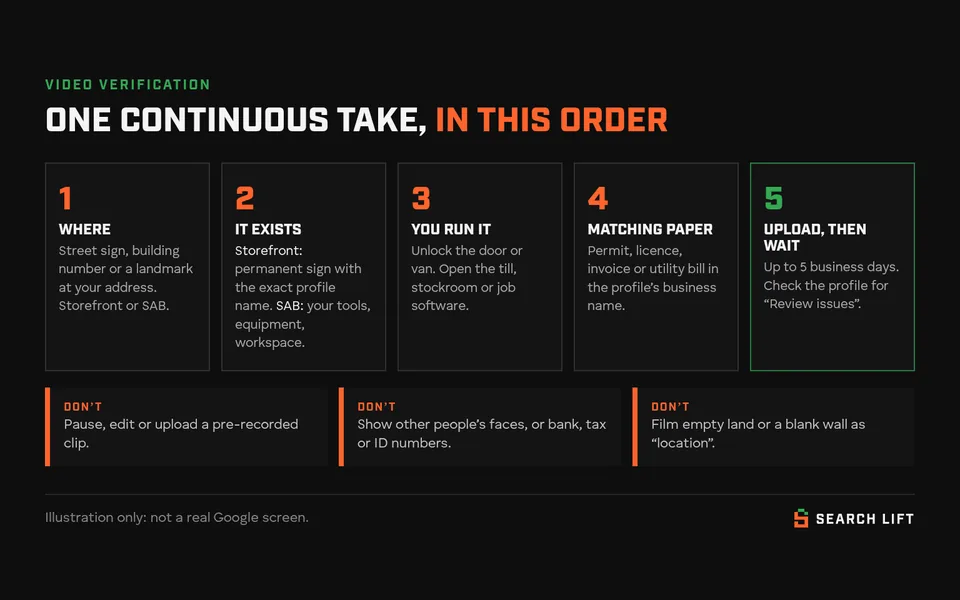
To pass Google Business Profile video verification, record one live, unedited video of at least 30 seconds on your phone, inside your Business Profile, that shows three things: where the business is, that it exists, and that you manage it. Most rejected videos miss one of the three. A service-area business with no sign or branded van can still pass by showing its tools, workspace and a business document in the profile’s name.
Google says the review takes up to 5 business days. Last checked against Google Help: 10 Oct 2026. We didn’t record a test video; tips from practitioners are labelled as reports.
Google’s rules for every video
- Live: no pre-recorded videos, and no recording offline to upload later.
- One take: unedited and complete, with no cuts, pauses or stitched clips.
- At least 30 seconds, recorded and uploaded from a phone through your Business Profile.
- Nothing sensitive: no bank, tax or ID numbers, private information or other people’s faces.
| Proof of… | Storefront or hybrid | Service-area business |
|---|---|---|
| Location | Street signs, building numbers, nearby businesses | Street signs or landmarks at your base (your home street is fine). Not empty land. |
| The business exists | A permanent sign with the exact profile name | Your tools, equipment, products or workspace |
| You manage it | Staff-only access: the till, kitchen, stockroom or point-of-sale | Performing a service, unlocking a branded van, or a permit, invoice or utility bill in the profile’s name |
Two eligibility rules matter. No permanent sign means you should be a service-area business, not a storefront. And online-only businesses aren’t eligible at all. Audio isn’t a requirement, so show things on camera rather than describing them.

Before you record
The reviewer compares the video with your profile, so make them match first.
- Business type: no customer visits or permanent sign? Remove the address and set up to 20 service areas within about 2 hours’ drive.
- Name: your real-world name, as on your sign and stationery. Extra keywords won’t match what the camera sees.
- Address and pin: film where the profile says you are.
- Edits: make corrections first. Don’t edit during the review.
- Phone and documents: sign in with the managing account, and choose a document whose business name matches. Cover account numbers.
How to record and upload
- On your phone, open your Business Profile and tap Get verified.
- Tap Business video → Next, and allow location, camera and microphone access.
- Tap Start recording and film the whole shot list in one take.
- Watch it back. If anything is missing or unreadable, tap Try again.
- Tap Upload video and keep the app open. Google says a cancelled upload is lost.
A steady one-to-two-minute take is plenty. Hold each sign or document still for a few seconds.
Shot list: storefront or hybrid
- A street name sign, then your building number.
- A neighbouring business or landmark.
- Your permanent sign, until the name is readable.
- Unlock the door or walk in, still recording.
- Inside: products, chairs or equipment.
- A staff-only area or system: the till, stockroom or POS screen.
- Optional: a licence or bill in the business name.
In a shared building, film the building sign or directory, then your door and sign.
Shot list: service-area, no sign or van
- The nearest street sign to your base, then your house or building number.
- Unlock your door, still recording.
- Your workspace: desk, garage or workshop.
- The tools, equipment or products you take to jobs, close up.
- Open your toolbox, kit bag or vehicle. An unbranded vehicle is fine; the tools are the proof.
- Business cards or branded clothing, if you have them.
- A permit, licence, invoice or utility bill in the profile’s name, with numbers and customer details covered.
- Optional: your job or booking software showing the business name. Sterling Sky reports this helps.
Lay everything out along your route first. Never film a customer’s home or face without permission, and don’t put up a temporary sign for the camera.
What happens after you upload
| You see | Do this |
|---|---|
| Still unverified, under 5 business days | Wait. Don’t upload again or edit. |
| Over 5 business days | Use Google’s Check your verification status tool |
| Review issues | Read the reasons, such as “No nearby area shown”, and record a new video that fixes them |
| Get verified again | Re-verify; try another method if one is offered |
| Verified | Check signed out. If only you can see it, read why your Google Business Profile isn’t public yet. |
Sterling Sky reports you may not be told about a rejection, so check the profile rather than waiting for an email.
If the upload fails
- Try again. Google says first uploads sometimes fail.
- Record inside the Business Profile, not from your camera roll.
- Use a strong connection and keep the app open until it confirms.
- Reports from practitioners: a shorter 60–90 second take, turning off a VPN, or a different phone can help.
Common rejection reasons
- No clear location: start on the street and hold the sign and number in frame.
- Name not visible or doesn’t match: film the sign up close and fix the profile name.
- No proof you run it: unlock, open a staff-only area, show a matching document.
- Storefront with no permanent sign: switch to a service-area business.
- Document in another name: use one in the business name.
If video isn’t offered or keeps failing
Google picks the methods and they can’t be changed. Use whatever else is offered (phone, text, email, live video call or postcard), then the Check your verification status tool, which can lead to support. Ask in the Business Profile Community with the exact Review issues text. Don’t create a new profile to get a different method; a duplicate adds a second problem. If your profile is suspended rather than unverified, see our rejected appeal guide.
When to get help
The owner or their team must film the video, but we can check your profile’s type, name and service areas first through our Google Business Profile service. Google decides, as our terms say. Once verified, run the free Search Gap check to see where you’re missing on Google and Maps. Related: why your business isn’t showing on Google Maps.